To configure your POP / IMAP accounts (e-mail addresses) with outlook 2007, we invite you to follow the detailed instructions below:
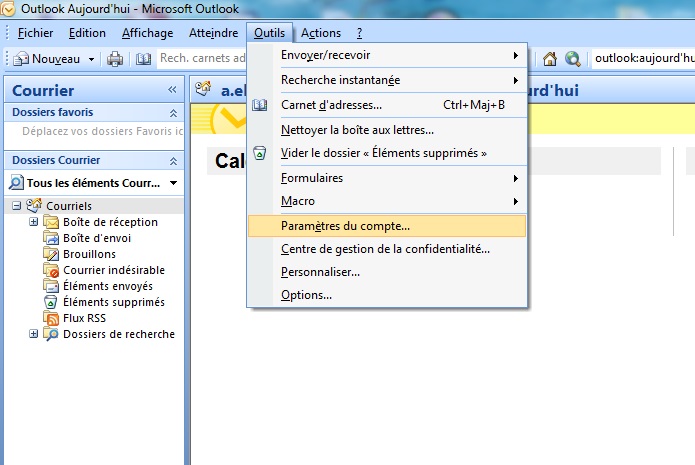
- Open Outlook 2007.

- Click on the "Tools" or Outils menu then on "Account settings" ...
- Click the "New" button or Nouveau to add a new account.

- Check the box at the bottom left: "Manually configure server settings or additional server types" or Configurer manuellement les paramètres du serveur ou les types de serveurs supplémentaires.
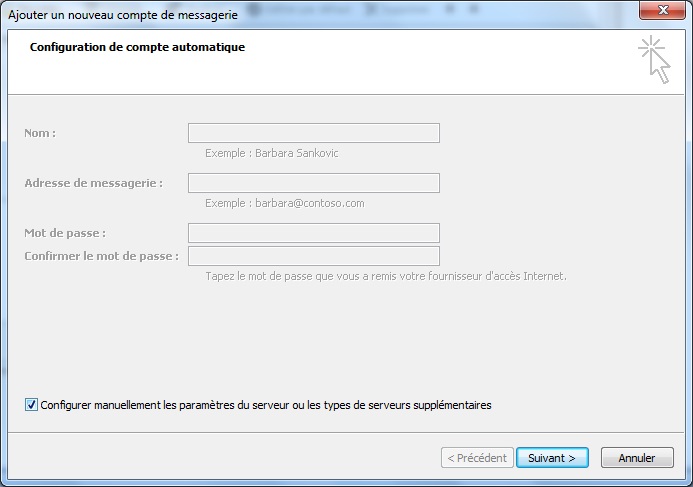
- Click the "Next" button or Suivant
- Choose: "Internet Mail" or Messagerie Internet and Next or Suivant
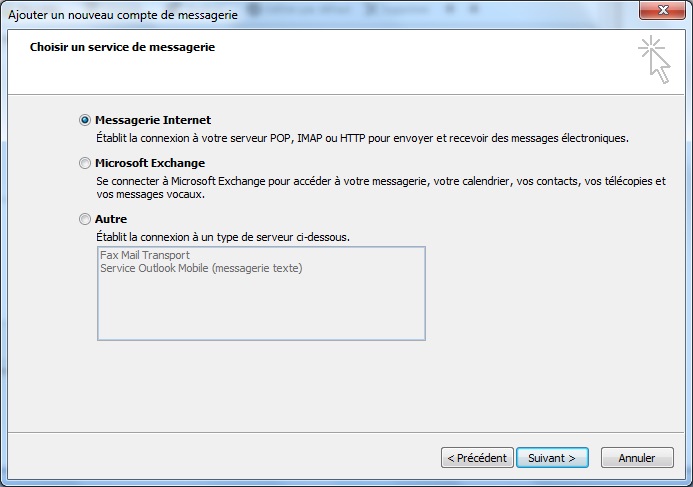
- On this page, you must enter the following information:
Your name: Fill in your first and last name
Email address: enter the email address you want to configure example: user@yourdomainname.com
Account type: You choose either POP3 or IMAP
Incoming mail server: mail.yourdomain.com Outgoing mail server: mail.yourdomain.com
Username: enter the email address you want to configure, example: user @ yourdomainname.com
Your password: Use the password corresponding to the email address in question.
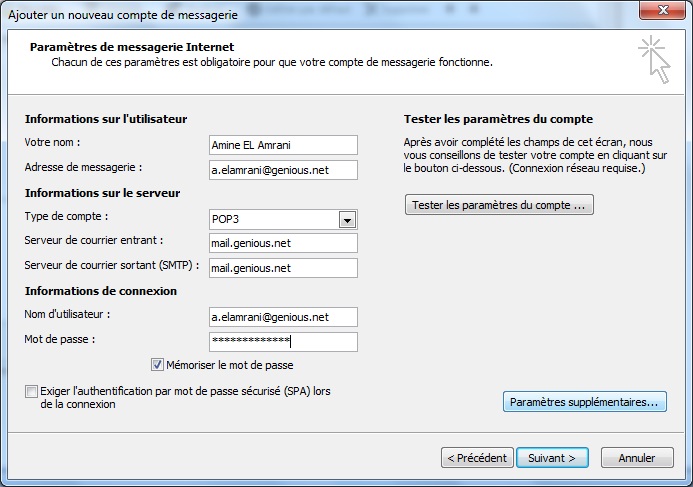
- Then click on the "Additional parameters" button or Paramètres supplémentaires.
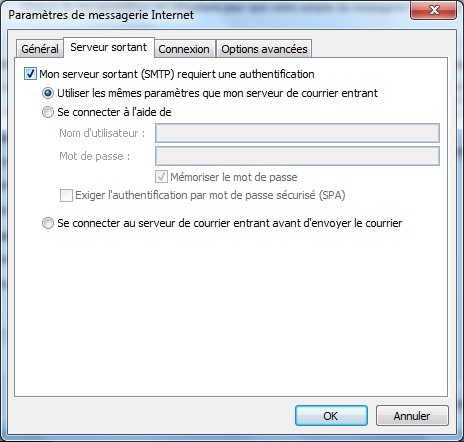
- In the "Outgoing server" tab, check the box "My outgoing server requires authentication to connect" or Mon serveur sortant requiert une authentification pour se connecter then "Use the same settings as my incoming mail server" Utiliser les mêmes paramètres que mon serveur de courrier entrant.
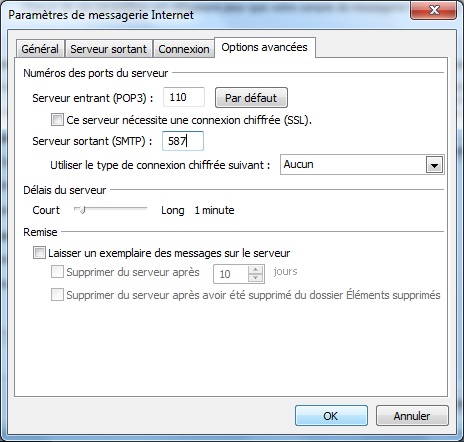
- In the "Advanced options" tab, the outgoing port (in Outgoing SMTP server) must indicate 587, then click OK
- Test your configuration by clicking on "Test account settings" or Tester les paramètres du compte.

- You can click "Next" and "Finish" or Suivant et Terminer.


Your account is now correctly configured!
